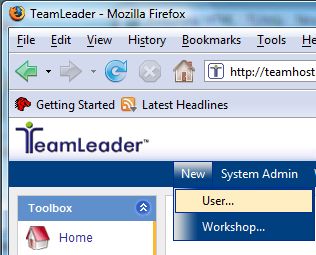
1. Select New > User from the top menu bar.
2. The User Manager window will appear.
Tip: When adding a new user to the system the items listed below with an * are required fields.
3. Enter the User Name*.
4. Enter the Password*.
5. Re-enter Password* to confirm.
6. Type the First Name* of the user.
7. Type the Last Name* of the user.
8. Enter the E-mail address*.
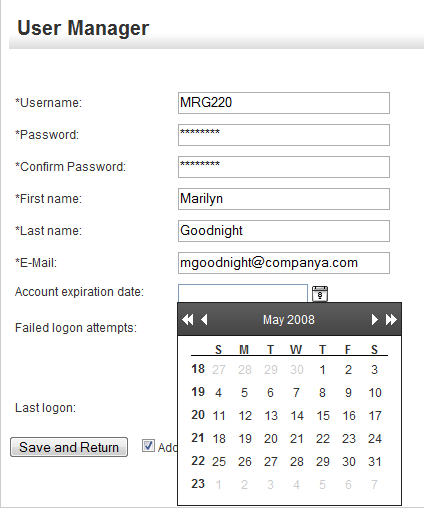
9. You have the option to enter an expiration date for the login. If you wish to use this feature you can either type an expiration date into the window or you can click the calendar button to the right and select a date.
10. Check the Add to current Workshop checkbox if necessary.
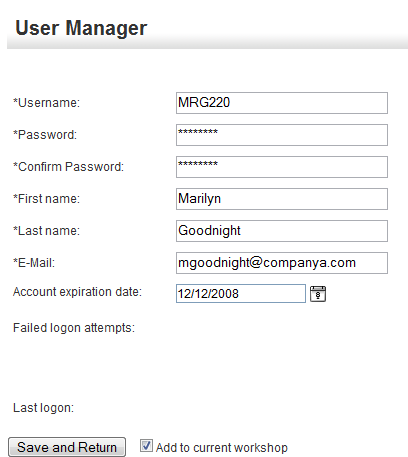
11. Select the Save and Return button when you are ready to add the user to the system.
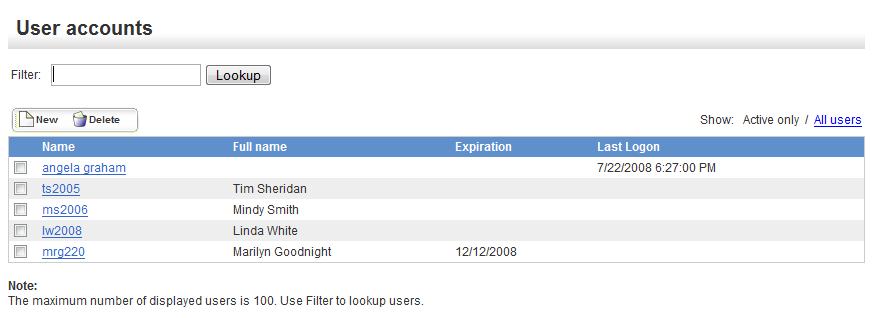
12. If you have successfully saved the new user, the name will appear in the listing as shown below.