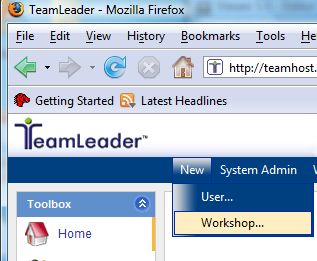
Workshops allow you to keep all information related to a team in one location so that all members added to that workshop are able to access the same documents, files, and tasks, as well as communicate with each other. The steps outlined below will assist you with creating a new workshop. Once the workshop is saved, it can be edited to add users, tools, and objects at a later time.
If you open the workshop before adding any objects, a message stating that the workshop does not contain any plugins will appear. Click on the link to enter the Manage Workshop Objects screen and begin adding objects.
1. Select New > Workshop from the top menu bar.
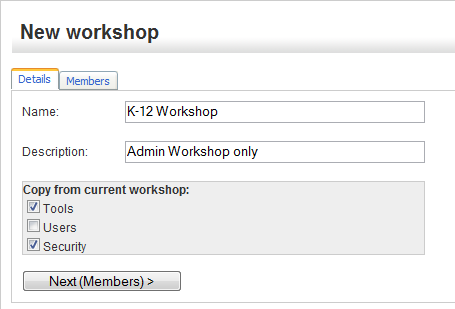
2. The New Workshop window will appear. Enter a Name.
3. Type a brief Description.
4. Place a checkmark next to the Tools, Users, and/or Security items if you want to copy the settings from the current workshop.
5. When finished, click the Next (Members) > button.
You can add objects and users at a later time. If you open the workshop before adding any objects, you will get a screen telling you that the workshop does not contain any plugins. Clicking on the link will take you to the Manage Workshop Objects screen.
6. Next, select the members that you want to add to the Workshop. If you need to look a particular person up, enter the filter data and select the Lookup button to display matching results. Click Add.
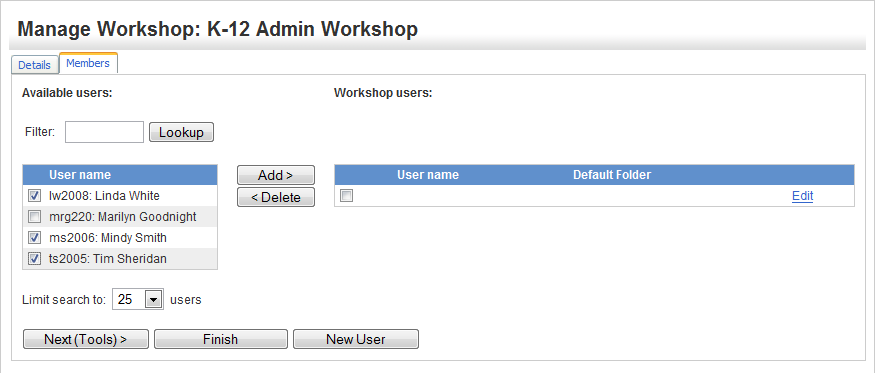
7. You can see below, that the users have been moved to the window on the right so that they are added to the current workshop.
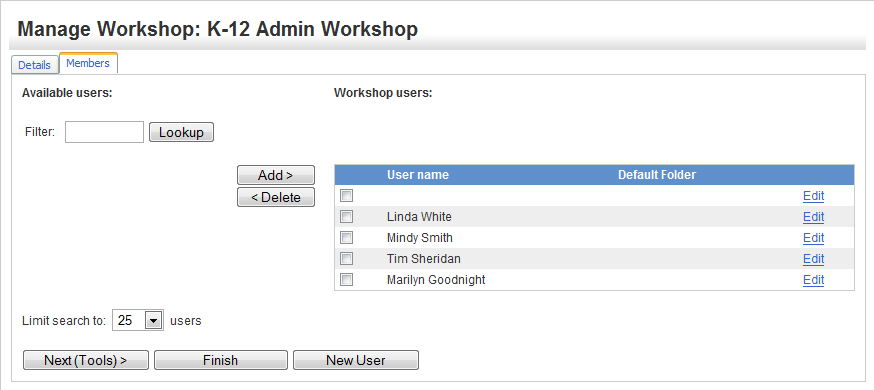
8. Click the Next (Tools) > button. (Note: You can finish now by clicking the Finish button. If you would like to Add a New User you can do that as well from this screen by clicking the appropriate button.)
9. Place a checkmark next to each Toolbox that you want available for the Workshop.
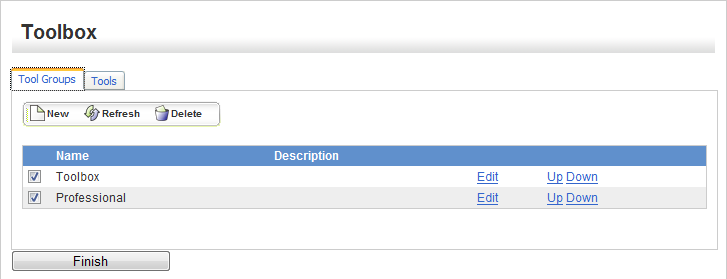
10. Select the Tools tab for a list of the tools that will be provided for the workshop. You can change the order of how the tools appear by using the Up and Down buttons.
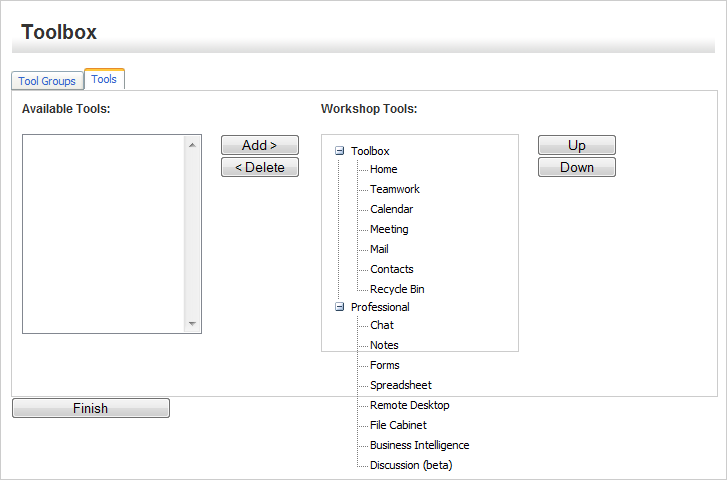
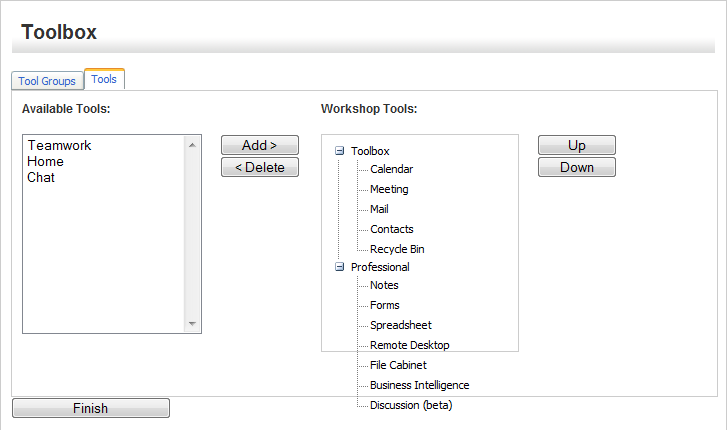
11. If you wish to have certain items not appear, highlight the items and click Delete and the items will be moved to the window on the left.
12. Click Finish when done. A calendar will appear with the date of your workshop highlighted in yellow.